 Izini
Izini Everything Izini does →
Your Izini consent banner on WordPress, without touching code.
The Izini plugin puts your banner on every page of a WordPress or WooCommerce site, holds back tracking scripts until visitors agree, and shows consent totals and cookie scans in wp-admin. You connect it with your Izini sign-in.
For WordPress 6.2 or later. The banner is on every Izini plan, Free included.
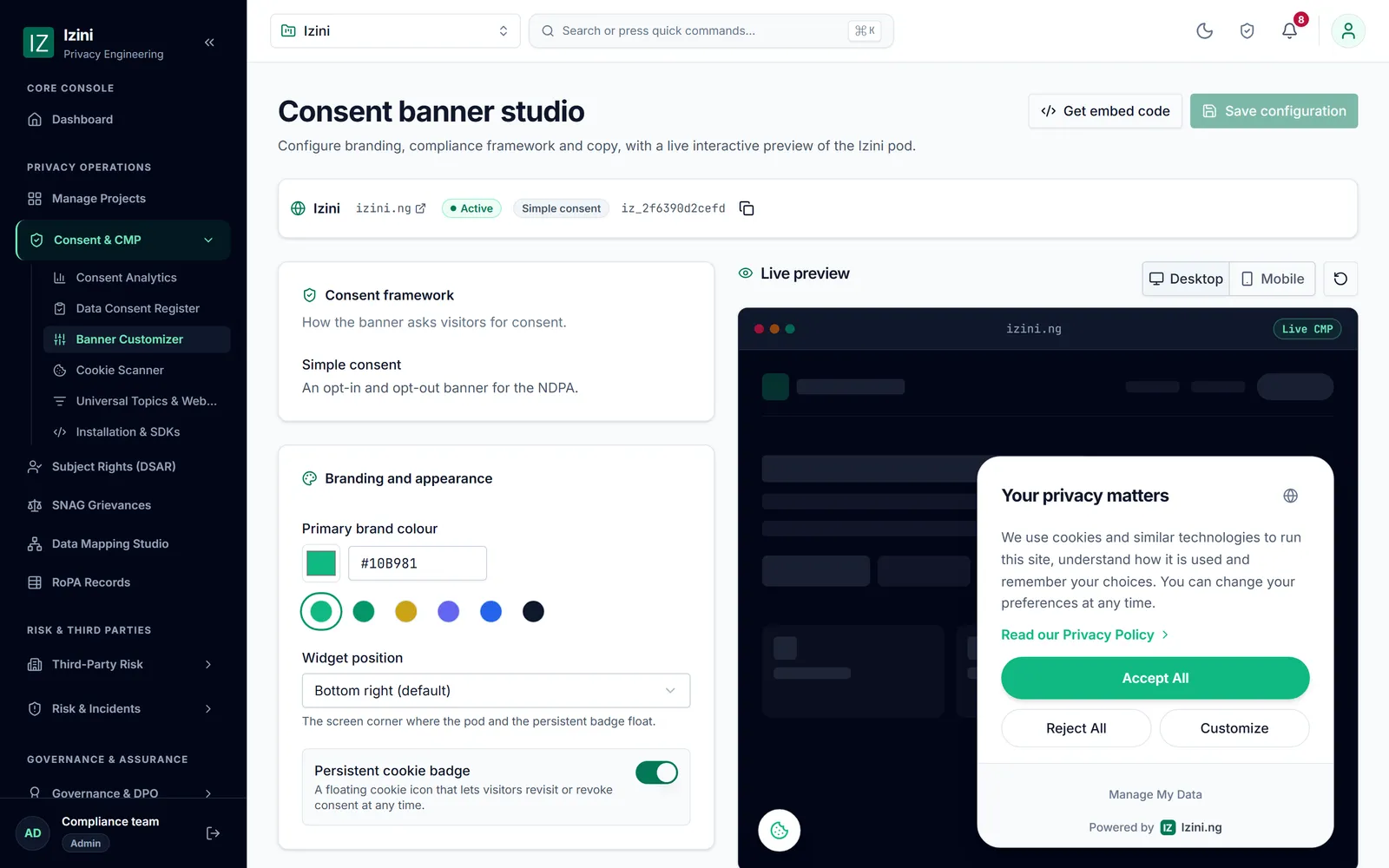
Consent on your site, managed from Izini
The banner first, on every page
Your Izini banner loads before your other scripts on every public page, with Google Consent Mode set to "denied" until the visitor chooses. Wording, languages and colours stay in Izini.
Trackers wait for consent
Give a script a category, such as Analytics or Marketing: a Facebook Pixel, a Google tag, a chat widget or a plugin's own file. It runs only after the visitor accepts that category. Needs WordPress 6.9 or later.
A "Privacy choices" link
A block, the shortcode [izini_privacy_choices] or a menu link to #izini-preferences reopens the banner, so visitors can change their mind at any time.
WooCommerce shops
The banner loads first on shop, product, cart and checkout pages, and WooCommerce's own order-tracking script can wait for consent like any other.
Consent totals in wp-admin
Choices in the last 30 days, as accepted all, accepted some and refused, on the plugin's page and the WordPress dashboard. Counts only.
Cookie scans from WordPress
See your latest cookie scan and start a new one from wp-admin. New cookies wait in Izini for you to review and categorise.
Two ways to install it
From the WordPress plugin directory
In wp-admin, go to Plugins > Add New Plugin, search for Izini, then press Install Now and Activate. The listing is in WordPress.org review; until it appears, download the plugin from Izini.
From your Izini dashboard
Go to Consent > Installation and open the WordPress tab. Press Download the plugin, then in wp-admin go to Plugins > Add New Plugin > Upload Plugin, choose the zip, and activate it.
Set up in four steps
- Connect your project. Open the Izini menu in wp-admin and press Connect with Izini. Sign in, choose the project for this website, and you come back connected. The banner is live straight away. You can also paste the project code from Izini.
- Hold back your trackers. On the Scripts tab, press Scan the home page and give each tracking script its category. Leave the scripts your site needs to work as they are.
- Add a "Privacy choices" link to your footer or menu. The plugin's Privacy link tab walks you through it for menus, block themes, page builders and widget areas.
- Check it. Open your site in a private window and the banner appears. In Izini, the health check under Consent > Installation confirms the banner and your project code are on your home page.
To see consent totals and cookie scans in wp-admin, the site must be connected by an Izini admin, owner or Privacy Engineer.
What the plugin keeps, and what it never sees
No passwords on your site
The plugin stores your project's public code, which is in your pages' source anyway. Connecting with Izini needs no password or key typed into WordPress.
Counts, not people
Statistics and scans use a token kept on your site's server. It reaches consent counts and cookie scans of that site only. Requests from people and consent records stay in Izini, behind its sign-in.
Yours to switch off
Turn statistics off in WordPress, or revoke a connected site in Izini. A token unused for 90 days stops working, and deleting the plugin removes everything it stored.
Put Izini on your WordPress site
Sign up, create a project for your website and connect it with the plugin. Or book a demo and we will look at your site with you.
- A walk through Izini using your own website
- A cookie scan of your site, yours to keep
- Straight answers on scope, timelines and pricing